Help > FAQ > Sound quality in Steam
Show menu names in
Screenshot showing the instructions
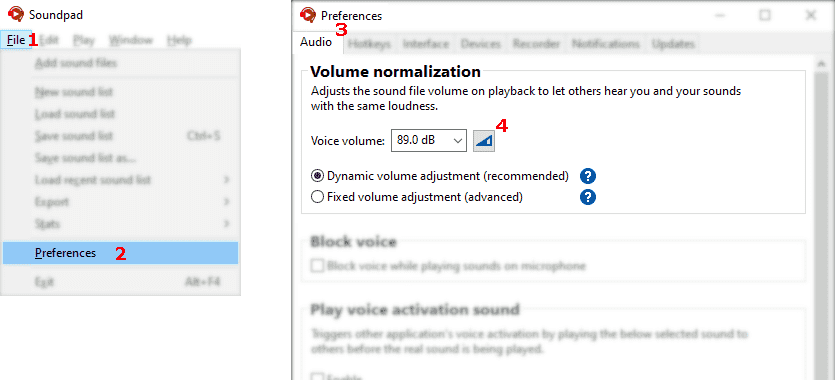
Let Soundpad measure your voice volume
  1. File1 > Preferences2 > Audio3
  2. Click button4
  3. Follow instructions in Soundpad
  4. Click stop button to finish measurement
  5. Apply the changes
The voice volume should be above 74 dB, otherwise certain voice applications may filter out played sounds misinterpreting them as background noise. If your measured voice volume is lower than 74 dB, it is recommended to increase the overall microphone volume in Windows.
Screenshot showing the instructions
  1. Right-click Steam icon in system tray1 > Settings2 > Voice3
  2. Click on Show4 to open advanced options
  3. Disable Echo cancellation5 and Noise cancellation6
  4. Start Microphone Test7
  5. Play a sound in Soundpad on the microphone only. You should hear it in Steam now.
Screenshot showing the instructions
There's probably a compatibility issue
  1. File1 > Preferences2 > Devices3
  2. Right-click your microphone > 4
  3. Select a different setup mode5
  4. Click on 6 to verify the result.
Change the setup mode only if you hear absolutely no sound when testing Soundpad in your voice app.